Select Browser Version:
The Map toolbar allows you to make selections and add to the results grid.
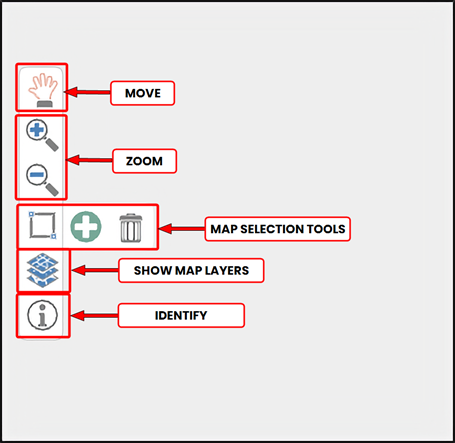
Select the Move icon to move around the map, The mouse pointer will change to a hand. Click and drag around the map/.
The Zoom controls allow you to zoom in or out of a section of the map, select the too and drag a rectangle over the region.
As an alternative you can use the scroll wheel on a mouse.
There are three map tools:
-
Rectangular selection tool - Lets you draw a selection and select the wells and seismic in the area/
-
Add to map - Click to add the selected items to the grid.
-
Clear selection - Deselects the selected items.
The Add selection and Clear selection tools become active when you make a rectangular selection on the map.
Show map layers will bring up a list of available layers you can make visible or hide from the map.
Identify will open a window displaying all selected items and display relevant information.
The map includes a local tool bar with common navigation tools for viewing the data geographically.
|
|
Pan: Click and drag to move to a different area of the map. Double-click to zoom in small increments. |
|
|
Zoom in: Click and drag to draw an area on the map and zoom to selected lines. |

|
Zoom out: When zoomed in, draw an area to quickly zoom out. |

|
Full extent: Click to reset the map to the world view (or the default section view). |

